
Take the companions home
All ten Sparkuna companions, from the Heritage Companions of Indonesia to Sparky and the first five, ready for your lock screen and your desktop. Pick your device, then tap a picture.





This month
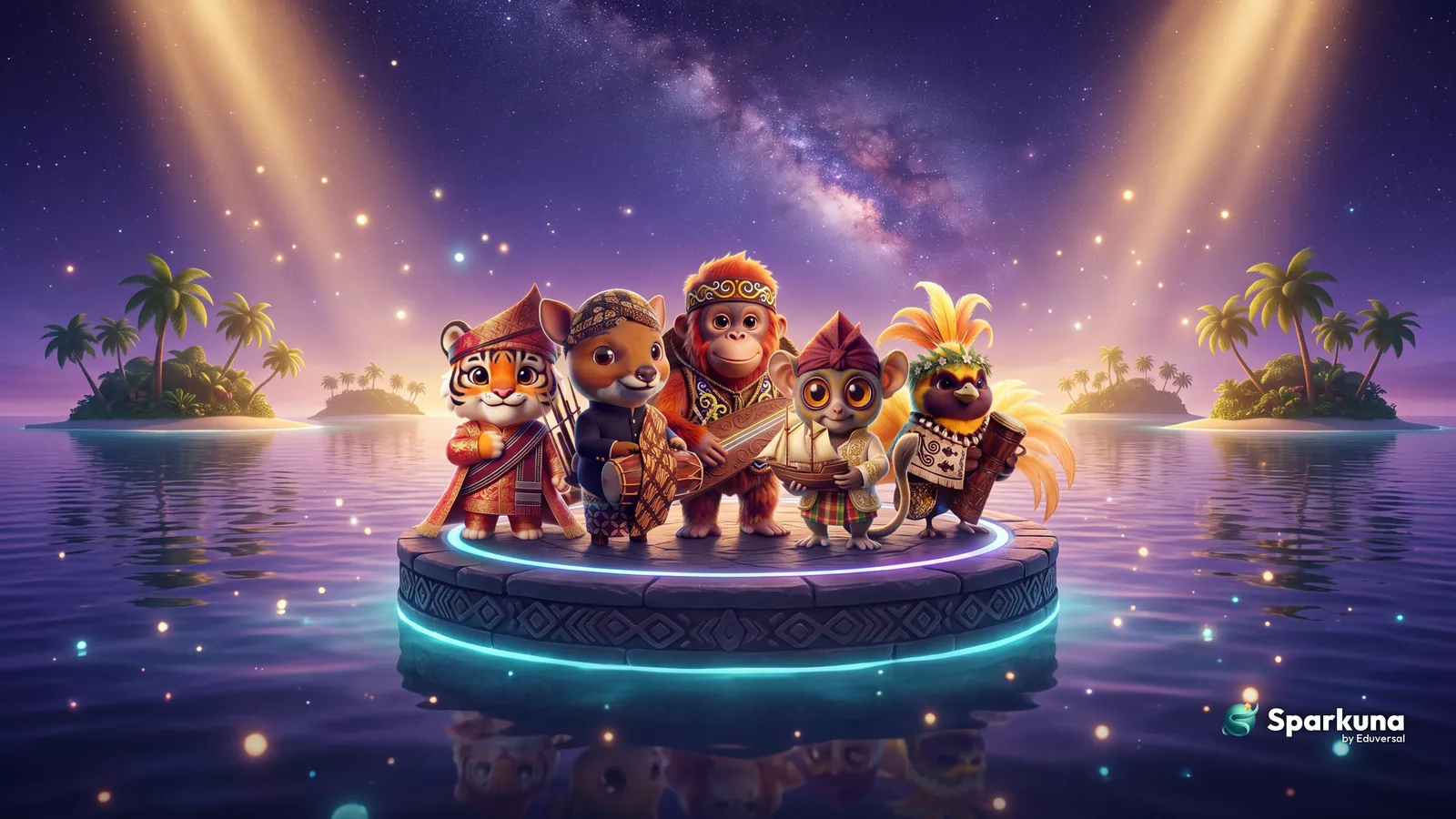
Heritage Companions, all five together
One companion, one island
The wallpapers could not be loaded just now. Please try again in a moment.
The first five: Sparky, Ember, Bolt, Luna and Capy
How to set your wallpaper
- Open the picture and tap Share, then Save Image.
- Open Photos, choose the picture, tap Share → Use as Wallpaper.
- Choose the lock screen, the home screen, or both.
- Tap Download.
- Open Gallery or Photos and choose the picture.
- Tap ⋮ → Set as wallpaper, then the lock screen, the home screen, or both.
- Open the picture and press and hold it, then tap Save to Photos.
- Go to Settings → Wallpaper → Add New Wallpaper → Photos.
- Choose the picture. It fits both portrait and landscape.
- Tap Download. The picture goes to Downloads.
- Open Files, right-click the picture.
- Choose Set as wallpaper.
- Click Download.
- Open the Downloads folder and right-click the picture.
- Choose Set as desktop background.
- Click Download and pick the MacBook (16:10) size.
- In Finder, open Downloads and right-click the picture.
- Choose Set Desktop Picture.
School Chromebooks and laptops are sometimes set up so that the wallpaper cannot be changed. If the option is missing, ask your teacher or the school's IT team: there is a section for them below.
For video calls
Backgrounds for Zoom, Google Meet and Microsoft Teams, for online classes and meetings. The companion stands on one side, so you stay in the middle. Each comes with the companion on the right or on the left.
- Download a background.
- In a meeting, click the arrow next to Stop Video → Choose Virtual Background.
- Click + → Add Image and choose the picture.
- Download a background.
- In a call, click ⋮ → Apply visual effects.
- Under Backgrounds, click + and choose the picture.
- Download a background.
- In a meeting, click More → Video effects.
- Click Add new and choose the picture.
If your picture looks reversed on your own screen, that is only your mirror view: everyone else sees it the right way round.
Classroom posters

Print the companions for your classroom
Every picture on this page as an A3 poster, ready to print in colour. On A4 paper, choose “Fit to page”. Download them all in one file, or pick single posters below.
Download all posters (PDF)For school IT teams
Put the companions on every school screen at once. Each picture has one file made for this: 3840 × 2160, with the logo kept inside the part of the picture that every screen shape shows, from 16:9 to 3:2.
- Download the file above.
- Go to Devices → Chrome → Settings → Users & browsers, and choose the students' organisational unit.
- Under General, open Custom wallpaper, click Upload, choose the file and Save.
- Chromebooks get it within minutes, sometimes up to 24 hours. While it is set, students cannot change their wallpaper.
- Copy the link above.
- In Intune, create a configuration profile with the Settings catalog.
- Find Personalization → Desktop Image Url and paste the link.
- Assign it to the group of student devices. Supported on Windows Education and Enterprise.
Choose the students' organisational unit or device group, so that teachers keep their own wallpaper. The files are free to use on school devices.
Meet them on Sparkuna
Pick one of the companions in Character Studio. Every time it grows into a new form, you discover another piece of its island’s heritage.
Free to use as a wallpaper at home and at school, and to share with friends and family. Please keep the Sparkuna logo on them, and do not sell them.